

How to calculate age in Excel: put the date of birth in cell A2 and the end date in cell B2, then use =DATEDIF(A2,B2,”Y”) for whole years, or the full breakdown formula in the card below for years, months, and days. The rest of this guide explains each piece, the traps that break it, and the alternatives, with every example checked against real dates. If you would rather skip the spreadsheet, try the chronological age calculator.
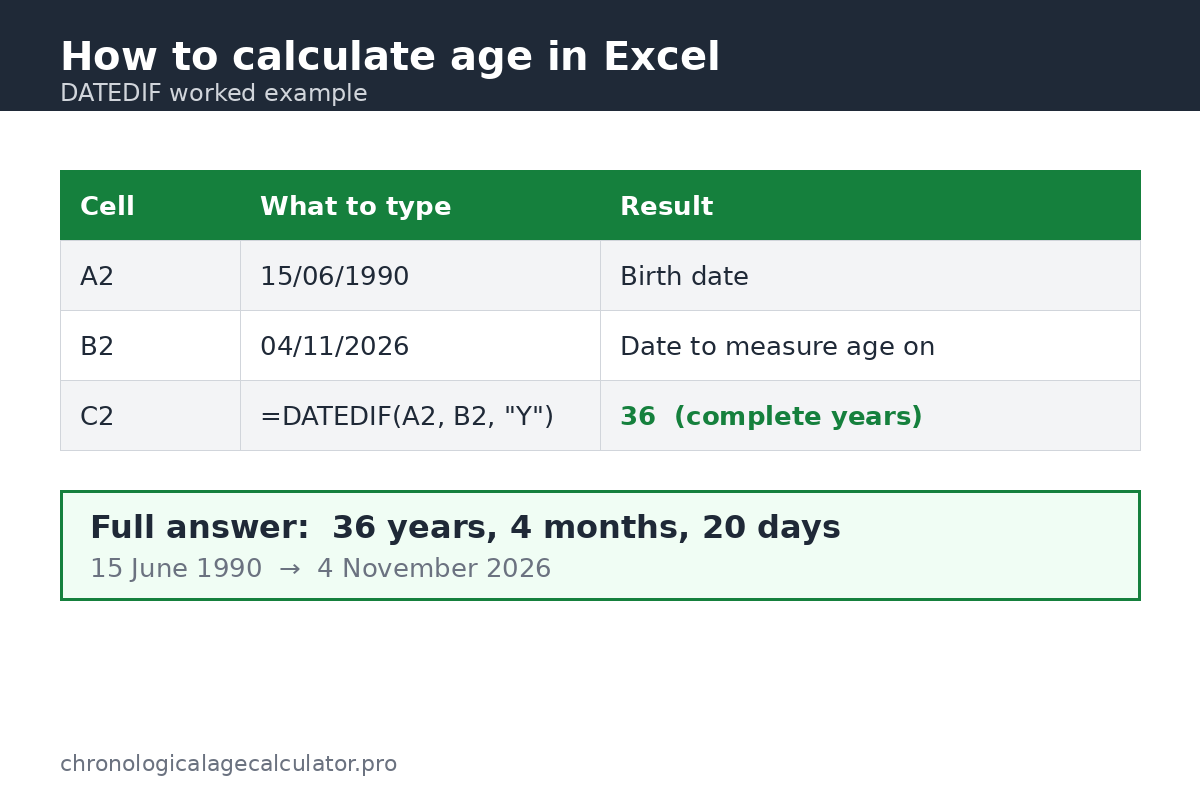
Table of Contents
Quick answer: the full formula
Years, months, and days in one cell:
=DATEDIF(A2,B2,”Y”)&” years, “&DATEDIF(A2,B2,”YM”)&” months, “&(B2-EDATE(A2,DATEDIF(A2,B2,”Y”)*12+DATEDIF(A2,B2,”YM”)))&” days”
With a birth date of 15 June 1990 in A2 and 4 November 2026 in B2, this returns exactly: 36 years, 4 months, 20 days. Change B2 to 1 January 2030 and it returns 39 years, 6 months, 17 days. Both results were checked by running the formulas, not just by reading them.
How to calculate age in Excel: first, check your dates are real dates
Most age-formula failures are not formula failures at all: the birth date is text, not a date. Before anything else, test the cell with =ISNUMBER(A2). If it returns TRUE, the cell holds a real date and the formulas below will work. If it returns FALSE, Excel sees text, and DATEDIF will answer with #VALUE! no matter how perfect the formula is.
Two quick tells: real dates sit right-aligned in their cells by default, while text dates usually sit left-aligned. And Excel’s date system starts on 1 January 1900, so birth dates before 1900 cannot be stored as real Excel dates at all; for those, work in years only (see the comparison table) or use a tool built for historical dates.
How to calculate age in Excel in full years: the basic formula
The simplest version is =DATEDIF(A2,B2,”Y”), where A2 holds the birth date, B2 holds the end date, and “Y” asks for completed years. DATEDIF counts only full years: someone born 15 June 1990 is 36 on 4 November 2026, because the 37th birthday has not arrived yet. If B2 holds TODAY() instead of a fixed date, the age updates itself every day: =DATEDIF(A2,TODAY(),”Y”).
One quirk to know: DATEDIF is a hidden function. It works in every modern Excel version, but it does not appear in the function wizard or in autocomplete, so you have to type it by hand. A typo there gives #NAME?, which is covered in the error table at the end.
How to calculate age in Excel: full breakdown in years, months, and days
The quick-answer formula works in three parts. DATEDIF with “Y” gives completed years. DATEDIF with “YM” gives the completed months after those years, ignoring the years themselves. The days part is then the end date minus EDATE pushed forward by those years and months: EDATE(A2, years*12 + months) lands on the most recent month anniversary, and subtracting it from B2 leaves the remaining days. That construction is why the result is exact: every piece counts completed calendar units, never averages.
Warning: never use the “MD” unit. You will see shorter versions of this formula using DATEDIF with “MD” for the days part. Do not use them. Microsoft does not recommend “MD” because it can return negative, zero, or inaccurate results in some cases. The EDATE days method in the formula card above avoids “MD” entirely and gives the verified results quoted in this guide.
Which method should you use?
| Method | Formula sketch | When to use it | Watch out for |
|---|---|---|---|
| DATEDIF (recommended) | =DATEDIF(A2,B2,”Y”) and the EDATE days method | Exact age in years, months, and days | Hidden function; type it by hand. Never use “MD”. |
| YEARFRAC | =YEARFRAC(A2,B2,1), with INT() for whole years | Fractional age, e.g. 36.4 years, for statistics | Fractional, not calendar years and months. Basis 1 means actual days over actual year length. |
| Divide by 365.25 | =(B2-A2)/365.25 | Rough estimates only | An average, not a calendar count. It drifts by days over long spans because leap years are not evenly spaced. Never use it where exact age matters. |
| Subtract the years | =YEAR(B2)-YEAR(A2) | Almost never | Overcounts by one year whenever the birthday has not happened yet in the end year. Only correct after adjusting for the birthday. |
The adjusted YEAR version, if you ever need it, is =YEAR(B2)-YEAR(A2)-(DATE(YEAR(B2),MONTH(A2),DAY(A2))>B2). The bracketed part subtracts 1 when this year’s birthday falls after the end date. It gives correct whole years, but it cannot give months and days, which is why DATEDIF remains the recommended method.
How to calculate age in Excel on a specific date
Sometimes the end date is not today but a fixed date: an enrolment cutoff, a policy start, or 1 January 2030. In that case, put the fixed date in a single cell, say B1, and use it as the end date: =DATEDIF(A2,$B$1,”Y”). The dollar signs lock the row and column, so the reference does not shift when you fill down. This fixed-date approach is a practical way to learn how to calculate age in Excel for deadlines and cutoffs.
The same trick works for the full breakdown: replace B2 with $B$1 in all three parts of the quick-answer formula. The verified example in this guide used exactly that approach with B2 set to 1 January 2030, giving 39 years, 6 months, 17 days for a 15 June 1990 birth date.
How to calculate age in Excel for a whole column
For a list of birth dates in column A, enter the formula once in B2, then double-click the fill handle (the small square at the bottom-right of the selected cell) to fill it down to the last row of data. Relative references do the rest: A2 becomes A3, A4, and so on, while a locked $B$1 stays put. Learning how to calculate age in Excel for a whole column saves time and keeps every row consistent.
Blank rows will break the column: DATEDIF on an empty birth date returns an error, which then pollutes totals and filters. Wrap the formula in an IF test so blanks stay blank: =IF(A2=””,””,DATEDIF(A2,B2,”Y”)). For the full breakdown, wrap the entire formula the same way, with the IF test first and the full calculation as the value-if-false. Rows with no birth date then show nothing instead of an error.
Next birthday, days until, and milestone ages
Next birthday. =IF(DATE(YEAR(TODAY()),MONTH(A2),DAY(A2))>=TODAY(),DATE(YEAR(TODAY()),MONTH(A2),DAY(A2)),DATE(YEAR(TODAY())+1,MONTH(A2),DAY(A2))). It builds this year’s birthday, uses it if it has not passed yet, and otherwise builds next year’s.
Days until that birthday. Put the next-birthday formula in a cell, say C2, then use =C2-TODAY(). The result is a plain day count, so format the cell as a number, not a date, or Excel will display it as a calendar date.
Age on a milestone date. Use the same breakdown formula with the milestone date as the end date. For example, age on 1 January 2030 for a 15 June 1990 birth date is 39 years, 6 months, 17 days. The same approach gives age at 18, age at retirement, or age on any cutoff: only the end date changes.
Months only, for babies. For infants, whole years are not useful. =DATEDIF(A2,B2,”M”) gives total completed months, so a baby born 15 June 2026 is 4 months old on 4 November 2026 by the same completed-units logic.
Error fixes
| What you see | Usual cause | Fix |
|---|---|---|
| #NUM! | Start date after end date in DATEDIF | Swap the dates, or check that the birth date is really earlier than the end date |
| #VALUE! | A date cell holds text, not a real date | Test with =ISNUMBER(A2). Re-enter the date, or convert text with DATEVALUE, then re-check |
| #NAME? | Misspelled function name, often DATEDIF typed wrong | Retype the function name by hand; remember DATEDIF is hidden and will not autocomplete |
| Error on blank rows | Formula runs on an empty birth-date cell | Wrap it: =IF(A2=””,””,…) so blanks stay blank |
| Age one year too high | YEAR subtraction without a birthday check | Use DATEDIF, or add the birthday adjustment shown in the comparison section |
| Dates read backwards | Day/month order confusion (text dates, locale settings) | Store dates as real dates, not text. Enter in ISO order (yyyy-mm-dd) or with the DATE() function to remove ambiguity |
Leap-day birthdays: the conventions differ by function
There is no single universal leap-day rule in Excel, because the functions do not share one. EDATE clamps to the end of the month: EDATE applied to 29 February 2000 plus 12 months gives 28 February 2001. DATEDIF counts completed years to the anniversary, and its year count around 29 February can surprise you, so always check a leap-day result against the date you expect rather than assuming a convention. And note that this site’s own age calculator uses yet another stated rule, counting the anniversary from 28 February in non-leap years. Same birthday, three behaviours: pick the one your sheet needs, and state it if anyone else will read the sheet.
Does this work in Google Sheets?
Yes, with the same syntax. Google Sheets supports DATEDIF, EDATE, YEARFRAC, TODAY, and IF, so the quick-answer formula works there too. One difference: Google Sheets lets you use dates such as 29 February in some calculations where Excel’s EDATE clamps to the end of the month, but for normal birth dates the results match Excel exactly. Knowing how to calculate age in Excel first makes the Sheets version easy to follow.
Frequently Asked Questions
Should I use DATEDIF or YEARFRAC to calculate age?
Use DATEDIF for exact age in calendar years, months, and days. Use YEARFRAC only when you want a fractional age, such as 36.4 years, for statistics. YEARFRAC with basis 1 divides actual days by the actual year length, so it never gives a clean years-and-months answer.
Why does DATEDIF return #NUM!?
Almost always because the start date is after the end date. DATEDIF requires the first date to be earlier than the second. Swap the dates, or check that the birth date cell really holds the earlier date and not a mistyped year.
Why does my birth date give #VALUE! in DATEDIF?
Because the cell holds text, not a real date. Test it with ISNUMBER: TRUE means a real date, FALSE means text. Re-enter the date as a real date, or convert it with DATEVALUE, and the formula will work.
Why should I avoid the MD unit in DATEDIF?
Because Microsoft does not recommend it: MD can return negative, zero, or inaccurate results in some cases. Use the EDATE days method from the formula card in this guide instead. It gives exact days without MD and produced both verified examples in this article.
How do leap-day birthdays work in Excel?
The functions do not share one rule. EDATE clamps to the end of the month, so 29 February 2000 plus 12 months gives 28 February 2001. DATEDIF counts completed years to the anniversary, and its count around 29 February can surprise you. Always check a leap-day result against the date you expect.
Do these formulas work in Google Sheets?
Yes. Sheets supports DATEDIF, EDATE, YEARFRAC, TODAY, and IF with the same syntax, so the formulas in this guide carry over unchanged. As in Excel, DATEDIF is hidden from function help, so type it by hand.
How do I calculate age for a whole column of birth dates?
Enter the formula once in the first row, then double-click the fill handle to fill it down. Relative references adjust per row, while a locked end date such as $B$1 stays fixed for every row.
How do I stop blank rows from showing errors?
Wrap the formula in IF so blanks stay blank. The working form is =IF(A2=””, “”, DATEDIF(A2,B2,”Y”)), and the same IF wrapper goes around the full breakdown formula: if the birth-date cell is empty, show nothing; otherwise run the full calculation.
How do I calculate age on a specific date instead of today?
Put the specific date in one cell, lock it with dollar signs (for example $B$1), and use it as the end date in place of TODAY() or a fixed B2. Change that one cell and every age in the column recalculates.
How do I show a baby’s age in months only?
Use =DATEDIF(A2,B2,M), which returns total completed months. A baby born 15 June 2026 is 4 months old on 4 November 2026 by that count, which is more useful than 0 years for infants.
Sources: Microsoft Support articles titled DATEDIF function, YEARFRAC function, EDATE function, and Calculate the difference between two dates. Formulas in this guide were checked by running them against the example dates quoted, and the two headline results (36 years, 4 months, 20 days; 39 years, 6 months, 17 days) are the actual outputs.